We can't find the internet
Attempting to reconnect
Something went wrong!
Hang in there while we get back on track
Integrate QuickBooks Desktop with Ruby on Rails
Connecting to Quickbooks
An overview of the system architecture would be helpful here.
-
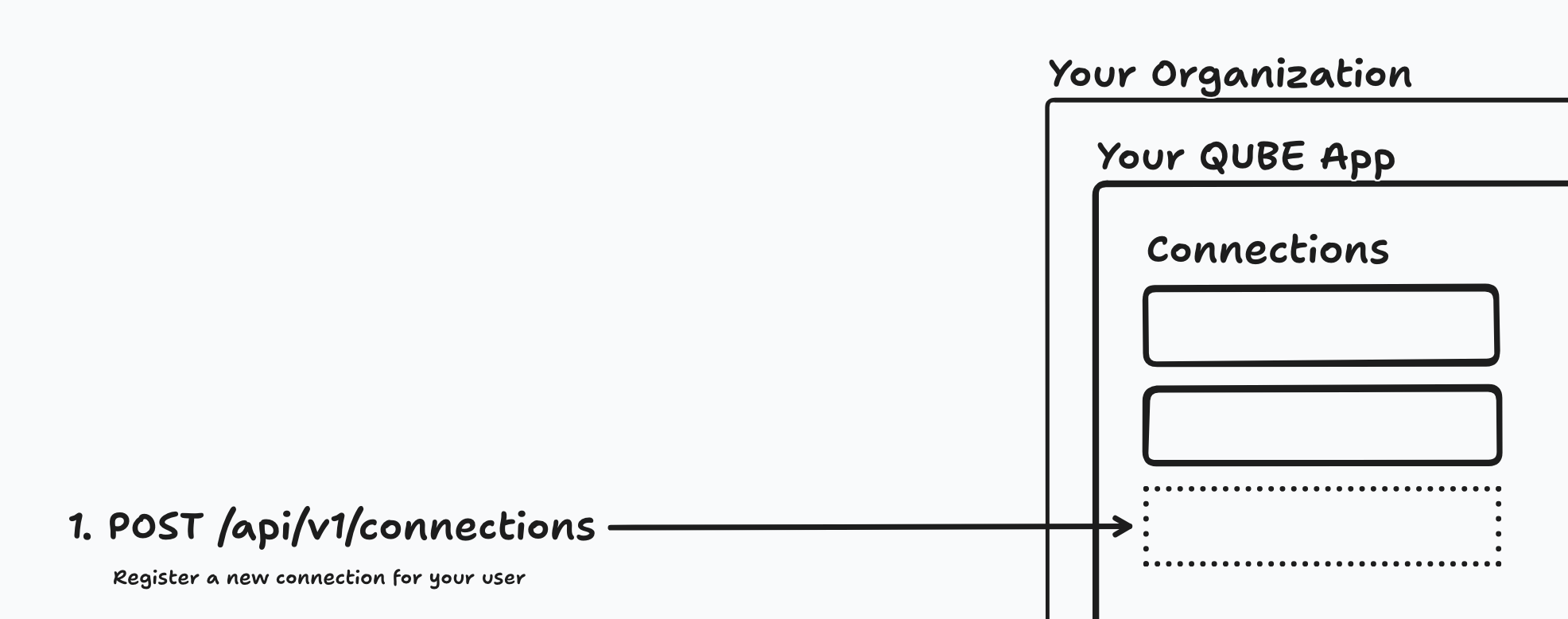
Create the connection. When your user wants to connect their QuickBooks account to your application, use the QUBE API to create a Connection on their behalf. QUBE returns an onboarding URL you can redirect your user to.
-
User completes onboarding. You send the user to the onboarding URL. QUBE walks them through a short checklist and connects their QuickBooks Desktop / Enterprise company file for you, preconfigured and ready to go. When they're done, they're redirected back to your app.
-
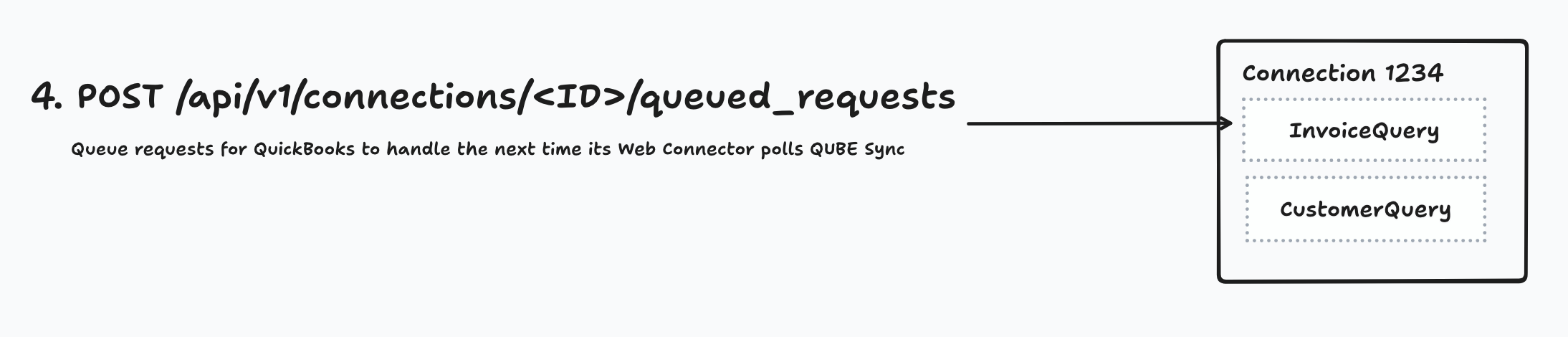
Make requests. Your application queues requests to QuickBooks using the QUBE API, and the user's QuickBooks Web Connector polls regularly to process the queue.
-
Receive webhook. If you passed a
webhook_urlwhen queuing a request, QUBE will send a POST request to this URL with QuickBooks' response when the request is complete.

Getting your API Key
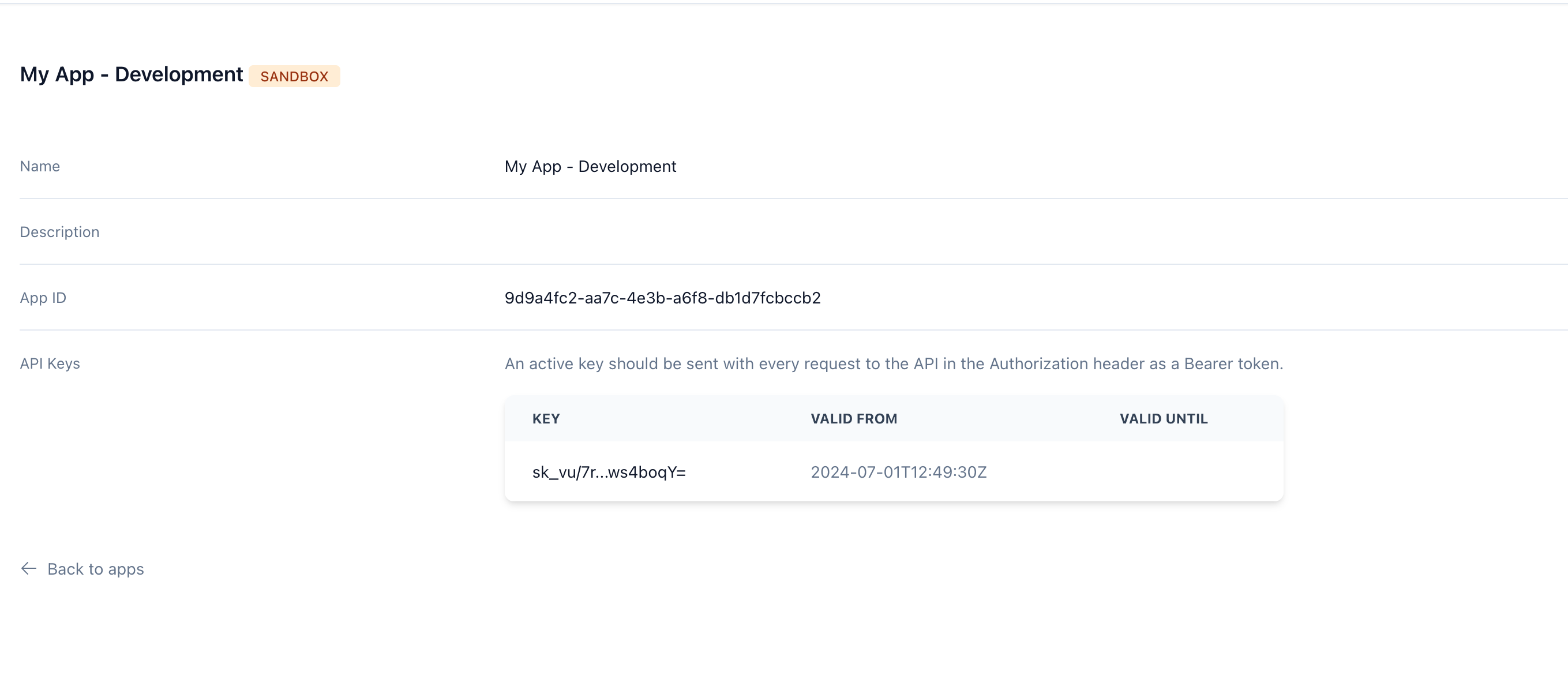
Copy the API key for your application from My Applications (you can use the Development app that was generated for you), and set it as an environment variable.
export QUBE_API_KEY=sk_more_characters_here
Install the QubeSync Gem
# Gemfile
gem 'qube_sync'
Allowing your users to start the process
You will want a button in your application that says "Connect to QuickBooks Desktop". When the user clicks this button, you'll create a Connection in your QUBE Application on their behalf. You'll need a local model to store a reference to this connection.
rails g model QubeConnection qube_id:string user:references
The controller action might look something like this:
# QuickbooksConnectionsController#create
def create
  # ...
  # The API returns the new connection, including an onboarding URL
  # that walks the user through connecting their QuickBooks company file.
  connection_data = QubeSync.create_connection(
    name: fake_company_name,
    redirect_url: app_quickbooks_integration_url
  )

  @qube_connection = current_account.qube_connections.create!(
    qube_id: connection_data[:id],
    onboarding_url: connection_data.dig(:links, :onboarding)
  )

  redirect_to @qube_connection.onboarding_url, allow_other_host: true
end
You can also pass a redirect_url as above when creating the connection. Once the user finishes (or cancels), QUBE redirects them back to that URL with a state query parameter: ?state=connected on success, or ?state=cancelled / ?state=expired if they bailed. Handle that callback to store the connection as "connected" in your database.
# QuickbooksConnectionsController#callback
def callback
  connection = current_user.qube_connections.find(params[:qube_id])

  case params[:state]
  when "connected"
    connection.update!(connected: true)
    redirect_to root_path, notice: "Your QuickBooks company file is connected!"
  when "cancelled", "expired"
    redirect_to root_path, alert: "We couldn't connect your QuickBooks file. Please try again."
  end
end
Altogether Now
ENV['QUBE_API_KEY'] ||= 'sk_your_key_here'

require 'bundler/inline'

gemfile do
  source 'https://rubygems.org'
  gem 'qube_sync'
end

data = QubeSync.create_connection(name: "Acme Inc.")
        .fetch("data")

connection_id = data.fetch("id")
user.qube_connections.create!(
  qube_id: connection_id,
  onboarding_url: data.dig("links", "onboarding")
)

puts "Send the user to: #{data.dig('links', 'onboarding')}"
Once the user completes the onboarding flow and returns to your app, the connection is ready to use.
Next Steps
Now that you have the Web Connector set up, you can start making requests to QuickBooks.